 PocketOption
Download Pocket Option — app for Android, iOS and PC
Trade binary options from any device. Mobile apps, desktop platform and web terminal with no installation required
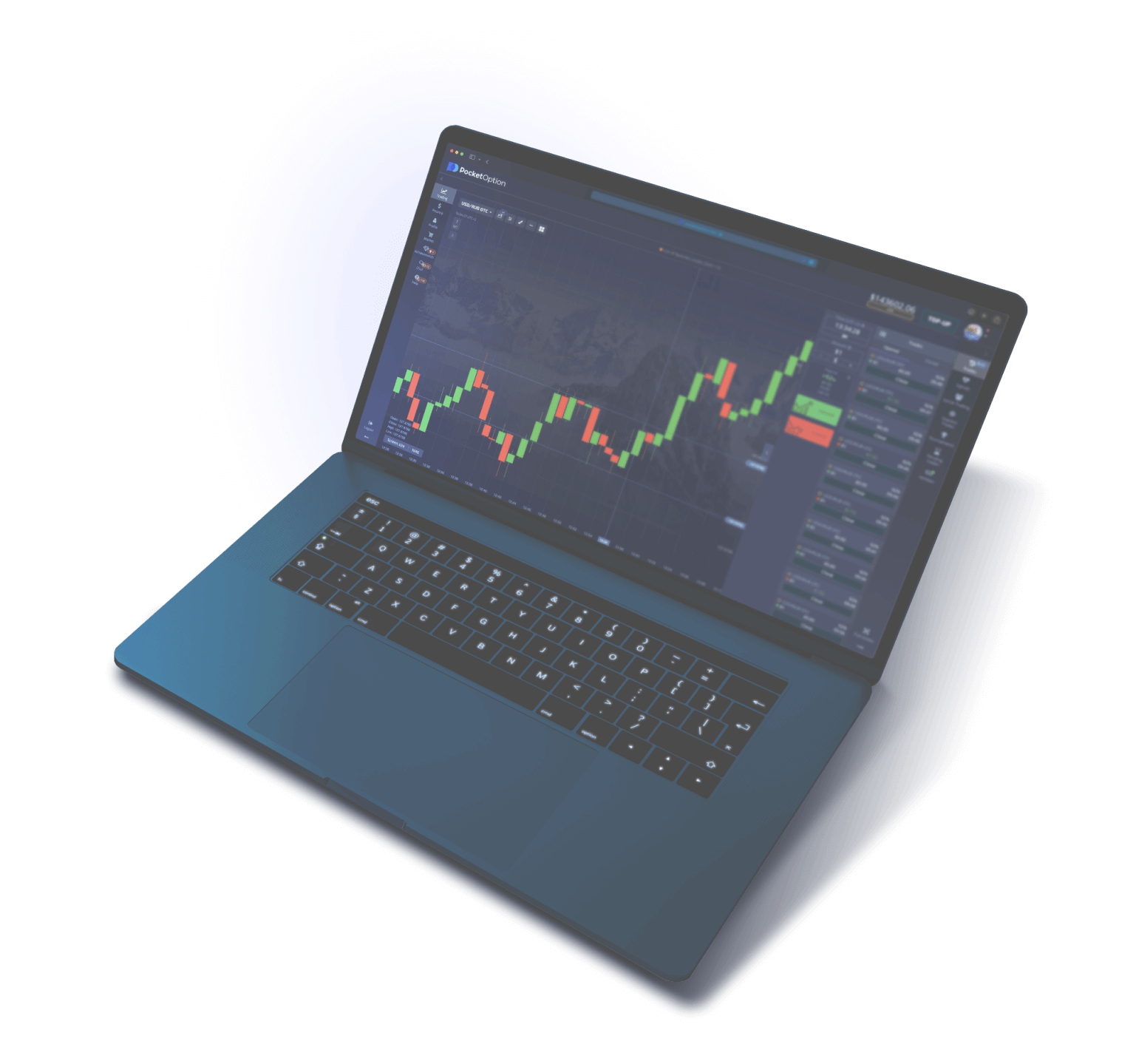
Pocket Option Apps Overview: Which Versions Are Available in 2026
Pocket Option gives traders four fully featured ways to access the trading platform: a mobile app for Android, a version for Apple devices on iOS, a desktop application for computers running Windows and macOS, and a web terminal that runs directly in the browser with no installation required. Each option provides a complete set of trading tools, including access to over 100 assets, technical analysis indicators, social trading, and trade copying.
The Pocket Option platform is developed by Gembell Limited (license MISA T2023322, Marshall Islands) and serves over 10 million users across 95 countries. All versions of the app are synchronized with each other: trades opened on a phone appear on the desktop and vice versa. Account balance, transaction history, chart settings, and indicators are stored in the cloud and accessible from any device when logged into the same account.
The choice of version depends on the trader's preferences, the device's operating system, and usage conditions. The Mobile App is suited for trading on the go, the desktop version offers advanced charting capabilities on a larger screen, and the web terminal is convenient when using someone else's computer or when installing software is not an option. A summary table of all available versions is provided below.
| Platform | Installation Method | Minimum Requirements | Size |
|---|---|---|---|
| Android | APK from official website / Google Play | Android 6.0+, 2 GB RAM | ~45 MB |
| iOS | App Store / PWA | iOS 14.0+, iPhone 8 and newer | ~60 MB |
| Windows | .exe installer from the website | Windows 10+, 4 GB RAM | ~85 MB |
| macOS | .dmg installer from the website | macOS 11 Big Sur+, 4 GB RAM | ~90 MB |
| Web Version | No installation required (browser) | Chrome 90+, Firefox 88+, Safari 15+ | 0 MB |
All Pocket Option apps are distributed free of charge. The platform does not charge for downloading, installing, or using the software. Monetization occurs exclusively through the spread on trading operations. Updates for all versions are released regularly — on average every 2–3 weeks — and include bug fixes, performance optimizations, and new feature additions.
It is worth noting that the functionality across versions is nearly identical, though some nuances exist. The desktop version for Windows and macOS offers the most comprehensive set of charting tools, including advanced zoom capabilities and the ability to overlay multiple indicators. The mobile apps are optimized for fast one-tap trade execution and support push notifications for signals and price changes. The web version sits in the middle ground, providing a comfortable terminal without requiring any installation.
What's available right after installation
Regardless of the platform chosen, once the app is installed and you've registered (or logged into an existing account), the trader gets instant access to the following features: a trading terminal with real-time charts, a demo account with a virtual balance of $50,000 with no time limit, over 100 trading assets (currency pairs, cryptocurrencies, stocks, commodities), more than 50 technical analysis indicators, social trading and copy trading from successful traders, and a live chat with customer support in Russian.
Funding a real account is available via cryptocurrency (USDT, Bitcoin, Ethereum), e-wallets (Perfect Money, WebMoney), bank cards, and P2P Transfers. The Minimum Deposit is $5, and the minimum trade amount is $1. A bonus of up to 100% is credited automatically on the first deposit of $50 or more. All deposit and withdrawal operations are available directly within the app without navigating to the website.
Tip: For maximum flexibility, install the app on two devices — a smartphone and a computer. This lets you open trades from your phone while on the go, and perform in-depth chart analysis on a large monitor. One account supports simultaneous login on multiple devices.
Download Pocket Option on Android: Google Play and APK File
For Android devices, Pocket Option offers two installation methods: through the Google Play store and via direct APK file download from the platform's official website. Both options provide the same application with a full set of trading features, but differ in the installation procedure and update mechanism.
Installing from Google Play
The Pocket Option app is available on Google Play for users in most countries. Installation is straightforward: open the app store, type "Pocket Option" in the search bar, select the official app (developer — GEMBELL LIMITED), and tap "Install". Once the download is complete, the app will appear on your device's home screen. The advantage of this method is automatic updates through Google Play and security verification by Google.
It is worth noting that Google periodically tightens its policies regarding financial trading applications. In some regions (including Russia), the app may be temporarily unavailable on Google Play. If the app does not appear in the store search, use the alternative method — installation via APK file.
Installing via APK File: Step-by-Step Guide
APK (Android Package Kit) is the standard installation file format for the Android operating system. This method does not require access to Google Play and works on any Android device running version 6.0 or higher. Below is a detailed step-by-step guide for installing the APK version of Pocket Option.
Step 1. Prepare your device. Open your smartphone's "Settings", go to the "Security" section (or "Apps & Notifications" on some models). Find the "Unknown sources" or "Install unknown apps" option and enable permission for the browser you will use to download the file. On devices running Android 8.0 and above, permission is granted individually for each app — simply enable it for Chrome or whichever browser you are using.
Step 2. Download the APK file. Open a browser on your Android device and go to the official Pocket Option website. On the homepage or in the "App" section, tap the "Download for Android" button. A file of approximately 45 MB will begin downloading to the default downloads folder. If the main site is blocked by your provider, use the platform's current mirror to download — the APK file is identical across all mirrors.
Step 3. Install the app. Once the download is complete, open the file from the notification panel or from the file manager (the "Downloads" folder). The system will prompt you to confirm the installation — tap "Install". The process takes 10–30 seconds depending on your device's performance. When finished, tap "Open" to launch the app.
Step 4. Sign in. On first launch, the app will prompt you to log into an existing account or create a new one. If you already have a Pocket Option account, enter your email and password. New users can register quickly — simply provide an email address and create a password. Immediately after signing in, the trading terminal opens with access to a demo account ($50,000) and a real account.
APK File Security
Downloading APK files outside of Google Play raises legitimate concerns among users, and those concerns are valid: installation files from unverified sources may contain malicious code. To ensure safety, only download the APK from the official Pocket Option website or verified mirrors of the platform.
Signs of a genuine Pocket Option APK file: the file size ranges from 40 to 55 MB (depending on the version), the file name contains "pocketoption" or "po", and during installation the app requests standard permissions (internet access, storage, and camera for verification). If the file is under 10 MB or requests access to SMS, calls, or contacts — it is a fake. Do not download APK files from Telegram channels, forums, file-sharing sites, or other unofficial sources.
After installation, it is recommended to disable the permission to install from unknown sources for your browser — this will prevent accidental installation of malicious apps in the future. Go to "Settings" — "Security" — "Unknown Sources" and revoke the previously granted permission.
System Requirements for Android
The Pocket Option app for Android is optimized to run on a wide range of devices. Minimum requirements: Android 6.0 (Marshmallow) or later, a processor clocked at 1.4 GHz or higher, 2 GB of RAM, and 100 MB of free storage (for installation and cache). The app runs correctly on devices with a screen diagonal of 4.7 inches or larger.
For a comfortable trading experience using multiple indicators and fast chart switching, a device with 4 GB of RAM, a Snapdragon 665 processor (or equivalent) or higher, and a screen of 6 inches or larger is recommended. On entry-level devices the app is functional, but interface slowdowns may occur during active trading with multiple windows open.
Warning: On rooted devices, the app may run unstably or fail to launch. Some models with custom firmware (LineageOS, CyanogenMod) do not support all app features. If you experience issues on a rooted device, use the web version of the platform via a mobile browser.
Download Pocket Option on iOS: iPhone and iPad
For Apple device owners, the Pocket Option app is available through the App Store, as well as in PWA (Progressive Web App) format for installation via Safari. The native App Store application delivers maximum performance and deep integration with the iOS operating system, including support for Face ID, Touch ID, widgets, and Apple's notification system.
Installing from the App Store
Open the App Store on your iPhone or iPad and search for "Pocket Option" or "PO Trade". Find the official app from the developer GEMBELL LIMITED — it is marked with a blue icon featuring the Pocket Option logo. Tap "Get" (or the cloud icon if the app was previously installed) and wait for the download to complete. The app takes up approximately 60 MB and installs automatically.
App Store availability depends on the region associated with your Apple ID. If the app does not appear in search results, it may be restricted in your region. In that case, create a separate Apple ID linked to another country (such as Cyprus, Turkey, or the UAE), or use the PWA version of the app.
Installing the PWA Version via Safari
A PWA (Progressive Web Application) is a web app that installs to your device's home screen and functions much like a native app. To install the Pocket Option PWA, open Safari (Safari is required — this feature is unavailable in other browsers), navigate to the official Pocket Option website, tap the "Share" button (the square with an upward arrow in Safari's bottom toolbar), then select "Add to Home Screen". Set a name for the shortcut (default is "Pocket Option") and tap "Add".
Once installed, the Pocket Option icon will appear on your home screen. When launched, the PWA runs in full-screen mode without Safari's address bar — visually indistinguishable from a native app. All trading features work identically: charts, indicators, opening and closing trades, deposits and withdrawals, and support chat.
Requirements and Features of the iOS Version
Minimum requirements for the native app: iOS 14.0 or later, which covers iPhone 6s and newer models. The PWA version requires Safari 14.0 or later (iOS 14+). Recommended devices for a comfortable trading experience: iPhone 8 and newer, iPad (6th generation) and newer, iPad Air (3rd generation) and newer.
The app is optimized for notched displays (iPhone X and newer), supports Dynamic Island on iPhone 14 Pro and later models, and is adapted for landscape orientation on iPad. iPad users also have access to Split View — allowing you to view a Pocket Option chart and, for example, a news feed in Safari simultaneously.
The native App Store application supports biometric authentication: Face ID on iPhone X and newer, and Touch ID on earlier models. This speeds up account login and enhances security — opening the app requires identity verification from the device owner. The feature can be enabled in the app settings after the first login.
Push notifications in the iOS version operate via Apple Push Notification Service (APNs). You can configure alerts for trade completions, price level triggers, bonus credits, support messages, and platform updates. Push notifications are limited in the PWA version — Apple began supporting them in PWA as of iOS 16.4, but the functionality is currently less stable compared to the native app.
Differences Between a Native App and a PWA
The native App Store application and the PWA version differ in several key ways. The native app delivers higher performance through direct access to the device's hardware resources, supports full push notifications, integrates with Face ID and Touch ID, appears as a separate app in the task switcher, and can run in the background. The PWA version, by contrast, requires no storage space on the device (it is essentially a bookmark to the site with extended capabilities), updates instantly on every launch, but has limited push notification support and no access to biometric authentication.
For most traders, the native App Store application is recommended if it is available in your region. If the app is unavailable, the PWA is a fully capable alternative that covers all trading needs without compromising the functionality of the terminal itself.
Tip: If you use an iPad for trading, enable landscape orientation — the chart will appear larger, making it significantly easier to work with indicators. To quickly switch between assets, use the swipe gesture on the currency pair list in the left panel.
Download Pocket Option for Desktop: Windows and macOS
The desktop version of Pocket Option is a full-featured application for personal computers running Windows and macOS. It is the most powerful variant of the platform, offering advanced capabilities for technical analysis, multi-monitor charting, and simultaneous tracking of multiple trading instruments.
Installation on Windows
To download the Windows version, visit the official Pocket Option website and click the "Download for Windows" button. An installer file in .exe format, approximately 85 MB in size, will be downloaded. Run the downloaded file as an administrator (right-click — "Run as administrator"). The installer will prompt you to select an installation folder (default: C:\Program Files\PocketOption) and create a desktop shortcut. Click "Install" — the process takes 1-2 minutes.
Once installation is complete, the application will launch automatically. On first launch, the program will download additional data (charts, quotes, language files) — this takes between 30 seconds and 2 minutes depending on your internet speed. An authorization window will then appear: enter the email and password for an existing account, or create a new one directly within the application.
Installation on macOS
For Mac computers, Pocket Option provides an installer in .dmg format. Download the file from the official website, open the downloaded DMG image, and drag the Pocket Option icon into the Applications folder. On first launch, macOS may block the application with the message "The application cannot be opened because its developer is not a verified developer." In this case, go to System Preferences — Security & Privacy — General and click "Open Anyway."
The Desktop App for macOS is optimized for Apple Silicon processors (M1, M2, M3, M4) and runs natively without Rosetta 2. On computers with Apple Silicon chips, the application launches faster and consumes less power compared to the Intel version. Multiple Spaces and full-screen mode are supported.
System Requirements for Desktop Computers
| Parameter | Windows (minimum) | Windows (recommended) | macOS (minimum) | macOS (recommended) |
|---|---|---|---|---|
| Operating System | Windows 10 (64-bit) | Windows 11 | macOS 11 Big Sur | macOS 14 Sonoma+ |
| Processor | Intel Core i3 / AMD Ryzen 3 | Intel Core i5 / AMD Ryzen 5 | Intel Core i3 / Apple M1 | Apple M2 and newer |
| RAM | 4 GB | 8 GB | 4 GB | 8 GB |
| Free Storage | 200 MB | 500 MB | 250 MB | 500 MB |
| Screen Resolution | 1366x768 | 1920x1080+ | 1440x900 | 2560x1600+ (Retina) |
| Internet | 1 Mbps | 10 Mbps+ | 1 Mbps | 10 Mbps+ |
Advantages of the Desktop Version Over Mobile
The desktop version of Pocket Option offers a number of significant advantages for traders who spend extended time at the terminal and make active use of technical analysis. A large computer screen allows you to display the asset chart, order list, indicator panel, and social trading feed all at once — every element visible without scrolling or switching between tabs.
The desktop platform supports working with multiple charts simultaneously in split-screen mode. A trader can arrange 2, 4, or 6 charts of different assets on a single monitor and track their correlation in real time. This feature is especially useful for multi-asset trading and strategies based on intermarket analysis.
The desktop version also provides more precise chart control: zooming with the mouse wheel, dragging the time axis, and placing horizontal and diagonal lines with pixel-level accuracy. Keyboard shortcuts speed up your workflow — you can assign keys for quickly opening a Call or Put trade, switching timeframes, adding indicators, and saving chart templates.
Another advantage is connection stability. The Desktop App uses a direct TCP connection to Pocket Option servers, bypassing the intermediate layers of a browser. This reduces latency (ping) when transmitting trading commands and updating quotes. For scalpers and traders operating on short timeframes (30 seconds — 1 minute), the difference in execution time can be critical.
Configuring Your Workspace on PC
After installing the desktop version, it is recommended to configure your workspace to match your trading style. Go to Settings — Interface to choose a color theme (dark or light), font size, and panel layout. Save the configuration as a template — after reinstalling or on a different computer, you can load it and restore your familiar layout in seconds. Traders with two monitors can move the asset panel and trade history to the second screen, leaving the primary monitor entirely dedicated to the chart.
Pocket Option Web Version: Trading Without Installation
The Pocket Option web terminal is a fully featured trading platform that runs directly in the browser of your computer, tablet, or smartphone. Accessing the web version requires no downloads or installations: simply open the Pocket Option website in any modern browser and log in to your account.
The web platform is built on HTML5, WebSocket, and WebGL technologies, ensuring fast chart rendering, smooth animations, and minimal latency when quotes update. The interface is fully responsive — it automatically adapts to the browser window size and screen resolution, displaying correctly on a 27" monitor at 4K resolution as well as on a 5.5" smartphone screen.
Supported Browsers
The Pocket Option web terminal is compatible with all current versions of popular browsers: Google Chrome (version 90 and above), Mozilla Firefox (version 88 and above), Apple Safari (version 15 and above), Microsoft Edge (version 90 and above), Opera (version 76 and above), and Brave (latest stable version). Internet Explorer and legacy versions of Edge (prior to the Chromium engine) are not supported.
For best performance, Google Chrome or Microsoft Edge are recommended — these browsers provide optimal WebGL rendering and WebSocket connection handling, which is important for smooth real-time chart display. Safari on macOS also delivers excellent results thanks to Apple's hardware-level optimizations.
When the Web Version Is Preferable
The web terminal is the ideal choice in several scenarios. First, when working on someone else's computer where installing applications is not possible or desirable (a work PC or public computer). Second, on devices with limited storage — the web version takes up no permanent space on the device. Third, in situations where the main domain is blocked: simply open a platform mirror in the browser via VPN to gain full access to the terminal.
The web terminal is also convenient for traders using Linux distributions (Ubuntu, Fedora, Arch Linux), for which no native desktop application is available. The web version runs in any Linux browser without restrictions and with full functionality. Additionally, ChromeOS (Chromebook) fully supports the web terminal, making it accessible to users of budget laptops.
Limitations of the Web Version
Despite its advantages, the web terminal has a few limitations compared to native applications. Browser push notifications are less reliable — they depend on browser settings and may be blocked by extensions. During extended use (more than 4–6 hours without a page reload), the web terminal may consume a significant amount of RAM due to data accumulating in the tab cache. It is recommended to periodically refresh the page (F5) to optimize performance.
The web version does not support offline mode — if the internet connection is lost, the terminal will pause data updates and display a disconnection notice. Native applications in the same situation cache the latest data and automatically reconnect when the connection is restored, minimizing loss of context.
Comparison Table all versions Pocket Option
Choosing the right platform version depends on your specific needs, device, and trading style. Below is a detailed comparison table to help you identify the best option for your requirements. Each criterion is evaluated across three main categories: mobile app (Android/iOS), desktop application (Windows/macOS), and web terminal (browser).
| Criterion | Mobile (Android/iOS) | Desktop (Win/Mac) | Web Version (browser) |
|---|---|---|---|
| Installation | APK / App Store / Google Play | .exe / .dmg from website | Not required |
| App size | 45-60 MB | 85-90 MB | 0 MB |
| Push notifications | Full support | System notifications | Limited support |
| Biometric authentication | Face ID / Touch ID / Fingerprint | Windows Hello | Not available |
| Multi-chart (multiple windows) | Up to 2 charts | Up to 6 charts | Up to 4 charts |
| Keyboard shortcuts | Limited set | Fully customizable | Basic set |
| Trade execution speed | High | Maximum | High |
| Indicators technical analysis | 50+ | 50+ | 50+ |
| Social Trading | Full support | Full support | Full support |
| Trade copying | Available | Available | Available |
| VPN / proxy support | Supported | Supported | Supported |
| Offline caching | Partial | Yes | No |
| Auto-update | Via store / manual | Automatic | Always up to date |
| Best suited for | Trading on the go, quick trades | In-depth analysis, scalping | Access from any device |
The table shows that there are no significant trading functionality limitations between versions — all three options provide access to an identical set of assets, indicators, and trading tools. Differences relate to ease of use, additional interface capabilities, and OS interaction mechanisms. The optimal strategy is to run two clients: the mobile app for quick access and the desktop application for analytical work.
Tip: Regardless of the version you choose, enable two-factor authentication (2FA) in your account settings. This feature protects your account when signing in from any device and is available across all versions of the platform. Use Google Authenticator or Authy to generate one-time codes.
How to Update the Pocket Option App
Keeping the Pocket Option app up to date ensures stable platform performance, access to new features, and protection against security vulnerabilities. Updates are released approximately 2-3 times per month across major platforms. Each update includes bug fixes, performance optimizations, and in some cases new trading instruments and interface features.
Updating on Android
If the app was installed via Google Play, updates are applied automatically over Wi-Fi (by default) or via mobile data (if enabled in Google Play settings). To update manually, open Google Play, go to "My apps & games", find Pocket Option, and tap "Update". If the app was installed via APK, automatic updates through the store are not available — when launched, the app will check for a new version and prompt you to download the updated APK file from the website.
Updating on iOS
On Apple devices, App Store updates are installed automatically if the corresponding option is enabled in iOS settings (Settings — App Store — App Updates). To update manually, open the App Store, tap your profile icon in the top right corner, find Pocket Option in the list of available updates, and tap "Update". The PWA version updates automatically each time it is opened — the browser loads the latest version from the server.
Updating the Desktop Version
The Desktop App for Windows and macOS supports automatic updates. On launch, the app checks the server for a new version. If an update is available, a dialog box appears with release notes and an "Update Now" button. The update process takes 1-3 minutes: the app downloads the patch file, applies the changes, and restarts. Account data, chart settings, and indicator templates are preserved during the update.
If automatic updates fail (for example, due to corporate firewall restrictions), download the latest installer from the official website and install it over the existing version. All user settings will be retained — re-authentication is only required when upgrading from a major version (e.g., from v3.x to v4.x).
Web Version: Always Up to Date
The web terminal requires no updates on the user's end. Each time the page is opened, the browser loads the latest version of the platform from the server. This is the key advantage of the web version when it comes to updates: traders always work with the latest interface and trading engine without any action required. The only recommendation is to periodically clear the browser cache for this site (Ctrl+Shift+Delete) to avoid conflicts between cached and current versions of scripts.
Important: Do not skip security updates. Updates marked as "critical" or "security update" patch discovered vulnerabilities in data protection and the authentication mechanism. Install such updates at the earliest opportunity without delay. Outdated versions of the app may lose compatibility with Pocket Option servers.
Installation Issues and How to Fix Them
Installing the Pocket Option app is straightforward in most cases, but users may run into a few common issues. The table below covers the most frequent situations with step-by-step solutions for each. It applies to all platforms: Android, iOS, Windows, and macOS.
| Issue | Platform | Solution |
|---|---|---|
| APK file won't install: "Installation blocked" | Android | Go to Settings — Security — Unknown Sources. Enable permission for the browser you used to download the file. On Android 8+, this permission is granted per app individually |
| App not found in Google Play | Android | The app is restricted in your region. Download the APK directly from the official Pocket Option website or a mirror. Alternatively, change your region in your Google account settings |
| App crashes on launch | Android / iOS | Clear the app cache (Settings — Apps — Pocket Option — Clear Cache). If that doesn't help, uninstall and reinstall. Make sure your OS version meets the minimum requirements |
| "App from unidentified developer" on launch | macOS | Open System Settings — Privacy & Security — General tab. Click "Open Anyway" next to the message about the blocked app. This is only required on the first launch |
| .exe installer blocked by antivirus | Windows | Add the installer file to your antivirus exclusions. SmartScreen may show a warning — click "Read more" and then "Run anyway". Only download the installer from the official website |
| App not showing in the App Store | iOS | The app is restricted for your Apple ID region. Create a new Apple ID linked to another country (Turkey, Cyprus, UAE) or install the PWA version via Safari |
| "Not enough storage space" error | Android / iOS / Windows | Free up at least 200 MB (mobile) or 500 MB (PC). Delete unused apps, clear browser cache, or move photos to cloud storage |
| Web version won't load, blank white screen | Browser | Clear browser cache (Ctrl+Shift+Delete). Disable ad-blocking extensions (AdBlock, uBlock Origin). Try incognito mode. If the site is blocked, use a VPN or a current mirror |
| "No server connection" error after installation | All platforms | Check your internet connection. Disable VPN (if in use) and try without it. If the app is blocked by a firewall, add it to the allowed programs list. Restart your router |
| Charts not displaying, empty terminal | All platforms | Update the app to the latest version. For the web version — update your browser and enable hardware acceleration (Settings — System — Hardware Acceleration). Disable power saving mode |
Installation Issues from Russia
Users from the Russian Federation face additional difficulties when downloading the Pocket Option app. The platform's main website may be blocked by internet service providers at the regulator's request. In this case, the direct download link for the APK file or Windows installer will not open. Solution: use a VPN service to access the official website or navigate to the current platform mirror, where the same download files are available.
Google Play in Russia may not display the Pocket Option app due to regional restrictions imposed by Google itself. To bypass this restriction, change the region of your Google account in the settings (Google Play — Account — Country — Switch), but keep in mind that a region change is only possible once per year. A simpler option is to download the APK directly from the website.
Apps in the App Store within Russia are also subject to filtering. If Pocket Option does not appear in the App Store with your Russian Apple ID, create an additional Apple ID linked to another country (for example, Turkey or Kazakhstan) — no payment card from that country is required for creation. Switching between Apple IDs is possible in the App Store settings without losing data on the device.
When using a VPN to download the app, make sure the VPN server is located in a country that is not on Pocket Option's restricted list. Connecting through servers in the USA, Canada, Australia, the UK, or Japan may result in an authorization error in the app. Recommended VPN locations: Netherlands, Germany, Singapore, Turkey, UAE, Kazakhstan.
General Recommendations
- Download only from official sources: the Pocket Option website, Google Play, App Store, or verified mirrors. Third-party websites and file-sharing services distribute modified versions containing malicious code
- Verify file integrity: APK size — 40-55 MB, Windows installer — 80-100 MB. Files significantly smaller in size are counterfeit
- Keep your operating system updated: outdated OS versions may not support new app features and may contain security vulnerabilities
- Restart your device: a simple restart resolves many installation and launch issues — it frees up memory and resets frozen processes
- Contact support: Pocket Option's support team operates 24/7 in Russian via online chat and email at support@pocketoption.com
FAQ About Downloading Pocket Option
Answers to the most common user questions about downloading, installing, and using Pocket Option apps on various devices and operating systems.
Yes, all versions of the Pocket Option app are completely free. The platform does not charge for downloading, installing, or using the trading terminal on any device. No hidden subscriptions, trial periods, or paid features — the full trading toolkit is available to every registered user. Payment is only required when funding a real trading account (minimum deposit — $5).
Yes, but only when downloading from the official Pocket Option website or verified platform mirrors. The APK file from the official source contains no viruses or malicious code. Before installing, make sure the file size is 40–55 MB and that the app requests only standard permissions (internet, storage, camera). Do not download APK files from Telegram channels, forums, file-sharing sites, or third-party aggregators — these sources may distribute modified versions containing keyloggers.
Yes, a single Pocket Option account supports simultaneous login on multiple devices. You can be logged in on your smartphone, computer, and the web version at the same time. All data syncs in real time: trades opened on your phone appear instantly on your computer, and your balance updates across all devices. One limitation: you cannot open the same trade from two devices at the same time — the system will process only the first order received.
There is no native desktop app for Linux, but the Pocket Option web version works fully in all Linux browsers (Chrome, Firefox, Brave). The web terminal's functionality on Linux is identical to the Windows and macOS versions — all trading instruments, indicators, social trading, and trade copying are available. An alternative option is to run the Windows version of the app through Wine, though stability in that case is not guaranteed.
Traffic consumption depends on trading intensity and the number of open charts. On average, with active trading (15–20 trades per day), the app uses 50–100 MB of data per day. In chart-watching mode with no trades placed, consumption drops to 20–30 MB per day. The web version consumes roughly 20–30% more traffic due to interface loading each time a page is opened. To save data, disable auto-loading of previews in social trading.
Steps to follow when the app is unstable: 1) clear the app cache (Settings — Apps — Pocket Option — Clear Cache); 2) restart your device; 3) make sure the latest version of the app is installed; 4) check available storage — a minimum of 500 MB of free space is required for stable performance; 5) if the issue persists — uninstall and reinstall the app. On Android devices with root access, crashes may be related to system modifications — try using the web version instead.
No, you can download and install the app without registration. An account is only required when launching the app for the first time to access the trading terminal. You can install the app first, evaluate its size and interface, and then decide whether to create an account. Upon registration, a demo account is automatically opened with a virtual $50,000 balance — you can practice without depositing real money.
Rolling back to a previous version is not recommended for security and compatibility reasons. Older versions may contain patched vulnerabilities and may no longer be compatible with the platform's servers. If issues arose after an update, contact support — developers promptly release hotfixes for critical bugs. On Android, it is technically possible to install an older APK after removing the current version, but local settings and cached data may be lost in the process.
Download Pocket Option and Start Trading
Free app for all platforms. Demo Account $50,000, over 100 assets, minimum deposit $5.