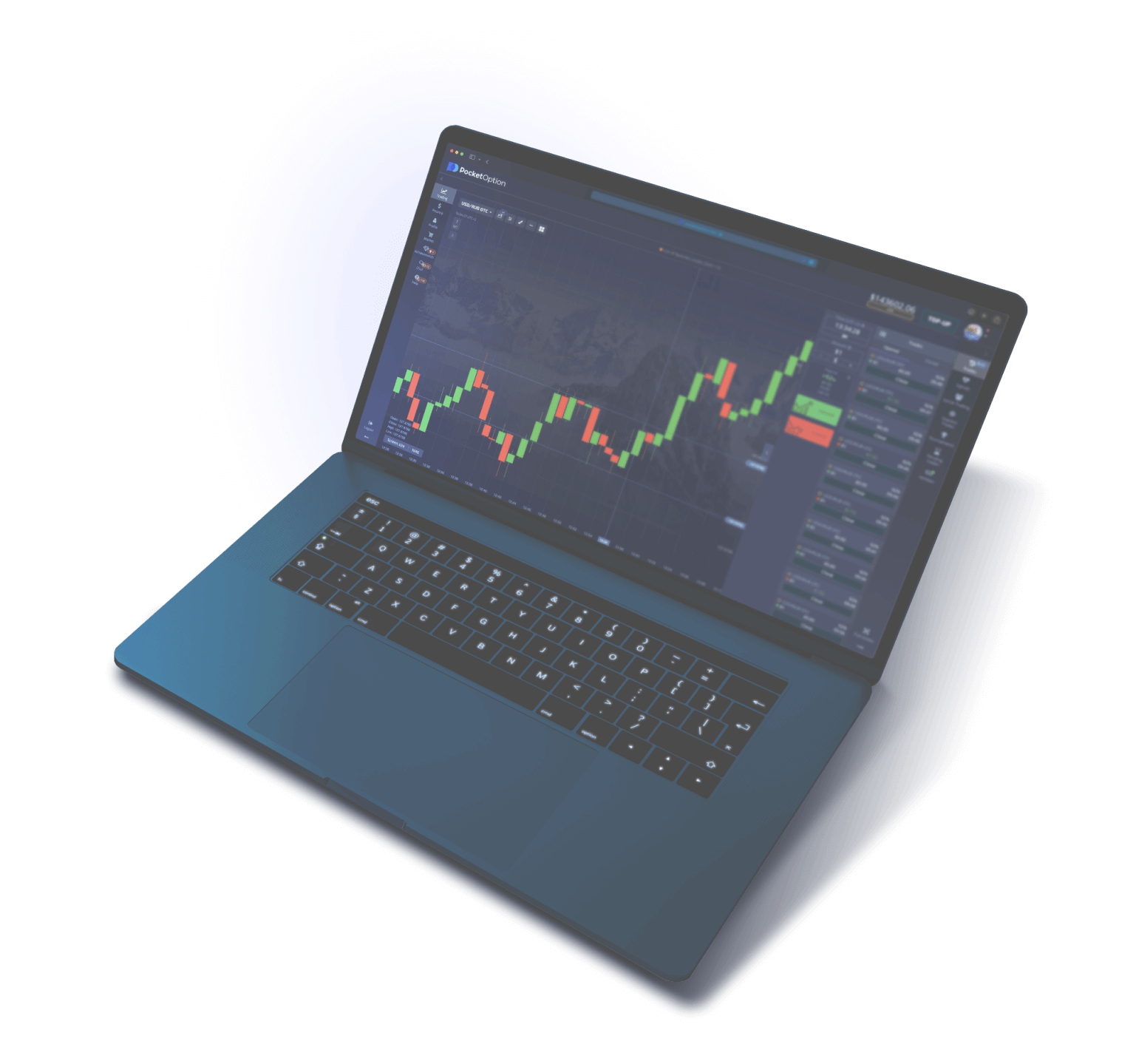
Download Pocket Option on iPhone — Installation for iOS

A full-featured trading app for iPhone and iPad. Download via the App Store, set up biometrics and push notifications, and get quick access to markets from your Apple device

iOS 13+
minimum version
~70 MB
app size
Touch ID / Face ID
biometric protection
Pocket Option iOS — app for iPhone and iPad

Pocket Option iOS App Review 2026

The Pocket Option mobile app for Apple devices is a full-featured trading terminal built specifically for the iOS architecture. The app is available for download in the official App Store catalog, has passed Apple's review process, and fully complies with the security policies of the Apple ecosystem. Unlike third-party downloaders or installation via developer profiles, downloading through the App Store guarantees a verified and up-to-date version of the app with no risk to the user's personal data.

Pocket Option for iOS is developed by Gembell Limited, licensed under MISA T2023322 (Marshall Islands). The app is designed for binary options trading and provides access to more than 100 trading instruments: currency pairs, stocks, cryptocurrencies, commodities, and stock market indices. All account data syncs in real time: trades opened on iPhone are instantly reflected when logging in from an iPad or the desktop version, and vice versa. Balance, trading history, and chart settings are stored in the broker's cloud infrastructure.

The iOS interface is adapted for the screens of all current iPhone models, from the iPhone 8 through the iPhone 16 Pro Max lineup. Both devices with a 4.7-inch display and modern models with 6.7 and 6.9-inch screens are supported. On iPad, the app automatically takes advantage of the expanded workspace, allowing more indicators to be placed on the chart and multiple assets to be monitored simultaneously. In Split View mode on iPad, a trader can trade in the Pocket Option app on one half of the screen while browsing news or analytics on the other.

Since its initial release, the app has received more than 25 updates, each adding new features, improving connection stability, and expanding the set of available technical analysis indicators. The current version supports one-tap trading, instant switching between demo and real accounts, a built-in economic calendar, and notifications for price level alerts and trade completions. The App Store rating consistently holds at 4.5 out of 5 stars, reflecting a high-quality user experience on the Apple platform.

Pocket Option on iOS operates over a secure connection using TLS encryption. Personal data, including payment and withdrawal details, is processed in accordance with industry security standards. An additional layer of protection is provided by built-in biometric authentication: Touch ID on models with a Home button and Face ID on models featuring the Dynamic Island or the classic TrueDepth notch module.

Particular attention should be paid to the app's performance on devices with Apple Silicon chips from the A15 series and newer. Charts load almost instantly, timeframe switching occurs without delay, and indicators recalculate in real time even when five or six analytical tools are applied simultaneously. On older models such as the iPhone 8 or second-generation iPhone SE, the app also runs stably, though some visual animations may be simplified to maintain interface smoothness.

It is worth highlighting the quality of localization separately. The application interface is fully translated into Russian, including the navigation menu, asset descriptions, indicator tooltips, and deposit and withdrawal sections. Customer support is available in Russian around the clock via the built-in online chat. This significantly simplifies the experience for Russian-speaking traders who do not need to navigate English-language terminology or translate notifications. The economic calendar also displays event descriptions in Russian, adjusted for the time zone selected in the account settings.

The application is deeply integrated with the native capabilities of iOS. Handoff is supported — a feature that allows you to start analyzing a chart on an iPad and instantly continue on an iPhone simply by picking up the phone next to the tablet. Spotlight Search indexes key sections of the application, allowing you to quickly navigate to a specific asset or deposit page directly from the iPhone system search. Siri Shortcuts support the creation of voice commands for opening specific screens within the app, for example: "Open a demo account in Pocket Option" or "Show the Bitcoin chart."

Installing via App Store: Step-by-Step Guide for iPhone and iPad

Installing the Pocket Option app on Apple devices is straightforward and takes no more than three minutes even with an average internet connection. Below is a step-by-step guide compatible with all current iPhone and iPad models running iOS 13 or later.

Step 1. Open the App Store on your device

Find the App Store icon on your iPhone or iPad home screen — it's a blue icon featuring a stylized letter "A" made of abstract lines. Tap it to launch Apple's app marketplace. Make sure you are signed in to the App Store with your Apple ID. If the system prompts you for a password or confirmation via Face ID/Touch ID during download, this is Apple's standard security procedure.

Step 2. Enter a query in the search bar

At the bottom of the App Store screen, tap the "Search" tab (magnifying glass icon). Type "Pocket Option" in the search field and tap the search button on the keyboard. The broker's app typically appears as the first result. Pay attention to the developer name — it should be listed as "GEMBELL LIMITED". This confirms you are downloading the official app and not a copy or phishing imitation. The app icon uses the platform's signature colors, which makes visual identification even easier.

Step 3. Tap the "Get" button

On the app's page in the App Store, tap "Get" (or the cloud icon with an arrow if the app was previously downloaded to this Apple ID). If download confirmation is enabled, the system will prompt you to authenticate via Face ID, Touch ID, or your Apple ID password. The app is approximately 70 MB in size, so downloading over Wi-Fi takes just a few seconds, while via LTE/5G mobile data it takes between 15 and 40 seconds depending on your carrier's coverage quality.

Step 4. Wait for the installation to complete

After tapping "Get," the app icon will appear on your iPhone or iPad home screen. While the download is in progress, a circular progress indicator is displayed around the icon. Do not interrupt the process — wait for the indicator to fill completely and for the "Loading..." label beneath the icon to disappear. Once the app is installed, the "Get" button in the App Store will be replaced by an "Open" button.

Step 5. Launch the app and sign in to your account

Tap the Pocket Option icon on your home screen or the "Open" button in the App Store. On first launch, a welcome screen will appear offering you the option to sign in to an existing account or create a new one. If you already have a Pocket Option account, enter your email address and password. New users can register directly within the app by providing an email and choosing a strong password. After signing in, the main trading interface will open, featuring the selected asset chart, the order panel, and platform section navigation.

Step 6. Customize the app to your preferences

After signing in for the first time, it is recommended to enable biometric authentication (Touch ID or Face ID) in the app settings, turn on push notifications to stay informed about your trades in a timely manner, and set your preferred chart timeframe. It is also worth switching to a demo account with a virtual balance of $50,000 to familiarize yourself with the interface layout and test order execution speed on your specific device and connection quality.

Alternative method: installation via direct link

If searching the App Store does not return the Pocket Option app (which can happen in certain regions due to local Apple policies), there is an alternative installation method. Visit the official Pocket Option website through Safari on your iPhone and tap the "Download for iOS" button. The system will automatically redirect you to the app's page in the App Store, bypassing regional search filters. This method works because a direct link to an app in the App Store is not subject to the same restrictions as the store's internal search catalog.

Another option is to temporarily change your Apple ID region. Open Settings > [your name] > Media & Purchases > View Account > Country/Region. Select a country where the app is guaranteed to be available: the USA, United Kingdom, Germany, UAE, or Turkey. Changing the region requires providing an address in the selected country (any public address will work, such as a hotel address) and, if you have active subscriptions, waiting for them to expire. The process is fully reversible — you can return to your original region at any time using the same steps.

Tip: After installing the app through an alternative region, you can immediately switch your Apple ID back to your original country. The already-installed app will remain on your device and function correctly. Updates will also be available regardless of your account's current region.

System Requirements for Installing Pocket Option on iOS

For the Pocket Option app to function correctly, your Apple device must meet the minimum technical requirements. Below is a detailed compatibility table covering current iPhone and iPad models, as well as supported versions of iOS and iPadOS.

Parameter Minimum Requirements Recommended
Operating System iOS 13.0 / iPadOS 13.0 iOS 17.0+ / iPadOS 17.0+
iPhone Models iPhone 8 and later iPhone 13 and later
iPad Models iPad (6th generation), iPad Air 3, iPad mini 5 iPad Air (M1/M2), iPad Pro (M-series)
Processor Apple A11 Bionic Apple A15 Bionic and later
RAM 2 GB 4 GB or more
Free Storage 120 MB (with cache) 250 MB (with charts and history)
Download Size ~70 MB
Internet Connection 3G / LTE (stable) Wi-Fi or 5G
Biometrics Touch ID (optional) Face ID (optional)

The iPhone SE third generation (2022) and later SE models are fully compatible with the app, thanks to the A15 Bionic chip and 4 GB of RAM. Devices based on the A11 and A12 chips (iPhone 8, iPhone X, iPhone XR, iPhone XS) are supported, though minor chart rendering slowdowns may occur when multiple indicators are running simultaneously.

On iPad, the app uses an expanded interface layout when the screen diagonal exceeds 10 inches. In this mode, the asset list sidebar opens alongside the chart, and the trade panel occupies a separate column on the right. On iPad Pro models with the M2 and M4 chips, charts render at 120 frames per second thanks to the ProMotion display, delivering exceptionally smooth scaling and scrolling through historical data.

Regarding operating system versions: iOS 13 is the absolute minimum required to run the app. However, upgrading to at least iOS 16 is strongly recommended, as Apple significantly improved background process handling and the energy efficiency of Bluetooth and Wi-Fi modules starting with that version — directly impacting connection stability during trading. On iOS 17 and iOS 18, additional system features are available: StandBy mode widgets, interactive notifications with action buttons, and improved Siri Shortcuts integration for launching the app via voice command.

Pocket Option Features and Capabilities on iPhone

The iOS version of the Pocket Option app replicates the full functionality of the web platform, adapting controls for touch interaction. Traders get access to all the same tools available on desktop, with no restrictions on trade types, number of assets, or analytical instruments.

Binary Options Trading

The primary trading mode is classic binary options with expiration times ranging from 5 seconds to 4 hours. The trader selects an asset, sets the investment amount (from $1), and chooses a trade direction (Higher/Lower). Execution is instant, and the outcome is determined automatically once the selected expiration period ends. On iPhone, a trade is placed in two taps: the first sets the amount, the second confirms the direction. This mechanic is critical for scalpers and traders working on short timeframes.

Over 100 Tradable Assets

The app supports trading across the following instrument categories: 35+ currency pairs (including majors, cross-rates, and exotics), 30+ stocks of leading global companies (Apple, Tesla, Amazon, Google and others), 10+ cryptocurrencies (Bitcoin, Ethereum, Litecoin, Ripple, Solana), commodities (gold, silver, Brent and WTI crude oil), and stock indices (S&P 500, NASDAQ, DAX, Nikkei). Switching between assets is done via a quick-access panel that can be customized to your preferences by pinning the most-used instruments to your favorites list.

Technical Analysis and Indicators

The built-in analytical environment includes over 50 technical analysis indicators: moving averages (SMA, EMA, WMA), oscillators (RSI, Stochastic, CCI, MACD), volatility tools (Bollinger Bands, ATR), volume and trend instruments. Every indicator is fully configurable: period, line color, thickness, overbought and oversold levels. Up to eight indicators can run on the chart simultaneously, which is on par with professional desktop terminals. Timeframes range from 5 seconds to 1 month, and switching between them is done with a single tap on the corresponding button above the chart.

Social Trading and Trade Copying

The Social Trading feature lets you browse a leaderboard of the platform's top traders and automatically copy their trades. The iOS app has a dedicated section for this, with filters by profitability, trading period, number of followers, and risk profile. Enabling copy trading requires just one button press, and the settings let you define a maximum amount per copied trade and a daily loss limit. A trader can simultaneously copy strategies from up to five top traders, diversifying approaches and reducing reliance on a single trading system.

Demo Account and Learning

Right after installation, users are given a free demo account with a virtual balance of $50,000. This balance can be topped up an unlimited number of times, allowing strategies to be tested without any financial risk. Switching between the demo and real account happens in one tap via a dropdown menu at the top of the screen. The demo account provides exactly the same set of assets, indicators, and features as the real account, including social trading. This is especially important for beginner traders who want to get comfortable with the platform before making their first deposit.

Economic Calendar and News

The integrated economic calendar displays key macroeconomic events: GDP data releases, central bank interest rate decisions, employment reports, PMI indices, and consumer inflation figures. Each event is marked with an impact level (low, medium, high), helping traders assess potential market volatility and adjust their trading plan. On iPhone, the calendar opens from the side menu and can run alongside the chart in scroll mode.

Deposits and Withdrawals

Financial operations are fully accessible from the mobile app. Supported payment methods include Visa and Mastercard bank cards, e-wallets (QIWI, YooMoney, Perfect Money, WebMoney), cryptocurrencies (Bitcoin, Ethereum, USDT) and other local payment systems depending on the user's region. Minimum Deposit is $5, and the minimum withdrawal amount is $10. Withdrawal requests are processed within one business day, with funds to e-wallets and crypto addresses typically credited within a few hours.

Setting Up Touch ID and Face ID for Secure Login

Biometric authentication is one of the most important security features in the Pocket Option mobile app. It allows you to log into your trading account without manually entering a password, while providing a level of protection comparable to two-factor verification. Setup takes less than a minute and only needs to be done once.

Enabling Face ID (iPhone X and later)

Face ID authentication is available on iPhone X, XS, XR, 11, 12, 13, 14, 15, 16, and all Pro/Max/Plus variants. To enable it, open the Pocket Option app, go to Settings (the gear icon in the side menu), find the Security section, and toggle on Sign in with Face ID. On first activation, the system will prompt you to confirm by scanning your face — simply look at the screen. Once activated, every subsequent app launch will automatically offer face unlock instead of a password prompt.

Enabling Touch ID (iPhone 8, SE)

On models with a fingerprint sensor (iPhone 8, 8 Plus, iPhone SE 2nd and 3rd generation), Touch ID is used instead. The process is the same: open Settings > Security > enable Sign in with Touch ID. Place your finger on the Home button to confirm. The app links biometrics to whichever fingerprint is already registered in iOS system settings. If multiple fingerprints are registered, any of them can be used to log into Pocket Option.

Additional Security Measures

In addition to biometric authentication, you can set up a four-digit PIN code as a fallback login method for situations where the biometric scanner is temporarily unavailable (for example, wet fingers or direct sunlight interfering with Face ID). The PIN is configured in the same Security section and is not linked to your bank card PIN or Apple ID password.

It is also recommended to enable two-factor authentication (2FA) through the Security section on the Pocket Option web platform. Once 2FA is active, the system will request a one-time code from Google Authenticator or Authy when logging in from a new device. Combined with Face ID/Touch ID on iPhone, this creates three-layer account protection: device biometrics, account password, and a one-time 2FA code.

Keep in mind that biometric authentication is tied to a specific device. When switching to a new iPhone, you will need to re-enable Face ID or Touch ID in the app settings on the new device. Transferring biometric data between Apple devices is not possible for architectural security reasons: fingerprints and facial models are stored exclusively in the Secure Enclave chip of the specific iPhone and are never synced to iCloud.

Push Notifications and Trading Alerts on iPhone

Mobile push notifications are an essential part of trading on iPhone. Pocket Option sends alerts about key events, allowing traders to stay informed about market conditions even when the app is minimized or the screen is locked. Properly configuring notifications directly affects response speed and, consequently, trading results.

Types of Notifications in Pocket Option

The app supports several categories of push notifications, each of which can be enabled or disabled independently. Trading notifications report the results of completed trades (profit or loss), account balance changes, and triggered price alerts. Financial notifications cover deposit confirmations, withdrawal request statuses, and bonus credit updates. System notifications include alerts about app updates, server maintenance, and changes to the trading schedule on public holidays.

Configuring Push Notifications

When the app is launched for the first time, iOS requests permission to send notifications. It is recommended to tap "Allow" to receive the full range of alerts. If permission was denied during the initial prompt, it can be enabled later: open the iPhone's system "Settings" > "Notifications" > "Pocket Option" > enable "Allow Notifications." Here you can also configure the display style (banner, alert, or badge only), sound, and notification grouping.

Within the Pocket Option app, additional granular settings are available. Under "Settings" > "Notifications," you can choose which specific events should trigger a push notification. For active traders executing dozens of trades per session, it makes sense to keep only notifications for large trades (above a set amount threshold) and price alerts, to avoid information overload.

Price Alerts

One of the most useful features is setting price alerts for individual assets. A trader specifies a target price level, upon reaching which the app will send an instant push notification. For example, you can set an alert for the EUR/USD pair at the 1.0800 level and receive a signal the moment that level is breached, allowing you to open a trade promptly. There is no limit on the number of simultaneously active alerts, making it possible to monitor multiple potential entry points across different markets at once.

On iPhones with the Dynamic Island feature (iPhone 14 Pro models and later), Pocket Option notifications appear compactly at the top of the screen without overlapping content from other apps. This is especially convenient when a trader is simultaneously analyzing news in Safari or discussing strategies in Telegram.

Differences Between the iOS and Android Versions of Pocket Option

Although both mobile versions provide access to the same trading functionality, there are significant differences between the iOS and Android apps in terms of installation, security, performance, and user experience. Understanding these differences will help traders choose the optimal device for trading or correctly configure the app when switching from one platform to another.

Criteria iOS (iPhone / iPad) Android
Download source App Store only Google Play + APK file
Minimum OS iOS 13.0 Android 6.0
App size ~70 MB ~45 MB
Biometrics Face ID / Touch ID Fingerprint / Face Unlock
Updates Via App Store (automatic) Google Play or manual APK update
Push notifications Apple Push Notification Service Firebase Cloud Messaging
Chart performance Stable 60–120 fps (ProMotion) Depends on the specific device
Background operation Limited by Apple policy Full background operation
Widgets iOS widgets + Live Activities Android widgets + Always-on Display
Installation security App Review Team verification Risk of installing a fake APK
Tablet support Optimized for iPad Basic adaptation

The key advantage of iOS is security and stability. The app is distributed exclusively through the App Store, which eliminates the possibility of installing a modified or malicious copy. Every update undergoes review by the Apple App Review team, which checks the code for vulnerabilities and compliance with privacy policies. On Android, it is possible to download an APK file from third-party sources, which creates an additional attack vector for fraudsters distributing fake apps with phishing login forms.

From a performance standpoint, iOS delivers more predictable behavior. All Apple devices compatible with Pocket Option are equipped with processors powerful enough for smooth interaction with charts and indicators. In the Android ecosystem, the performance range of devices is considerably wider: from budget smartphones with noticeable lag to flagship models that match the iPhone in rendering speed.

However, the Android version has its own advantages. The Android app takes up less storage space on the device, supports full background operation (which is important for receiving notifications during long-running trades), and offers a more flexible widget system on the home screen. Android also supports installation via APK in regions where Google Play temporarily restricts access to the app.

General recommendation: if the primary trading device is an iPhone or iPad, the iOS version will provide maximum stability and security. If a trader uses both types of devices, the Pocket Option account syncs across platforms without any additional configuration — simply log into the same account on both devices.

Troubleshooting Installation and App Issues

Despite the stability of the Apple ecosystem, technical difficulties occasionally arise when installing and using Pocket Option on iPhone. Most of them can be resolved with standard steps without contacting technical support. Below is a table of the most common issues with descriptions of their causes and specific solutions.

Issue Possible Cause Solution
App not found in the App Store Regional restrictions on Apple ID Change the Apple ID region to the US or UK in account settings. Restart the App Store
"Unable to Download" error Insufficient free storage on the device Free up at least 200 MB: delete unused apps, clear Safari cache, upload photos to iCloud
App crashes on launch Conflict with an outdated version of iOS Update iOS to the latest available version. Delete and reinstall the app
Face ID / Touch ID not working Biometrics disabled in system settings Go to Settings > Face ID & Passcode > make sure the toggle for apps is enabled
Charts not loading Unstable internet connection Switch between Wi-Fi and mobile data. Check VPN status (disable if necessary)
Push notifications not arriving Notifications disabled in iOS settings Settings > Notifications > Pocket Option > enable "Allow Notifications" and select a banner style
Slow interface performance RAM overload Close background apps (swipe up from the app switcher). Restart iPhone
Authorization error Incorrect password or account blocked Reset password via "Forgot password?" on the login screen. Check email for confirmation
App freezes on loading screen Corrupted data cache Delete the app, restart iPhone, reinstall from the App Store
Asset quotes not updating Server maintenance in progress Check server status on the official website or Telegram channel. Wait for maintenance to complete

If none of the listed methods resolve the issue, contact Pocket Option support via the built-in live chat (icon in the bottom right corner of the trading interface) or by email at support@pocketoption.com. When reaching out, provide your device model, iOS version, app version, and a detailed description of the problem — this will significantly speed up the diagnosis.

It is also worth noting the situation with VPN connections. Some users from Russia and CIS countries use VPN services to access the App Store and the application. If a VPN is unstable, it can cause connection drops to the trading server, delays in trade execution, and issues with chart loading. It is recommended to use reliable VPN services with servers in Europe (Netherlands, Germany, Finland) for minimal latency. If you experience issues with a specific VPN server, try switching to a different server or connection protocol (WireGuard generally provides lower latency than OpenVPN).

Periodic app updates in the App Store fix discovered bugs and improve stability. It is recommended to enable automatic app updates in the App Store settings (Settings > App Store > App Updates) to always use the latest version. If new issues appear after an update, wait one or two days — Pocket Option developers typically release a patch within 48 hours of detecting critical bugs in new versions.

Frequently Asked Questions about Pocket Option for iOS

Is the Pocket Option app for iPhone free?

Yes, the Pocket Option iOS app is completely free. Downloading it from the App Store requires no payment, subscription, or in-app purchase to access trading features. All technical analysis tools, indicators, social trading, and the economic calendar are available at no additional cost. Financial transactions (deposits and withdrawals) are tied exclusively to the trader's account, not to in-app purchases through Apple.

Can I trade on a demo account without making a deposit?

Yes, a demo account with a virtual $50,000 balance is available immediately after registration with no deposit requirements. The demo balance can be topped up an unlimited number of times. The full set of trading instruments and assets is available on the demo account, allowing you to practice in conditions that closely mirror real trading — without any financial risk. Many experienced traders continue using the demo account to test new strategies even after switching to a live account.

Why isn't Pocket Option showing up in my region's App Store?

In some countries, Apple restricts the visibility of financial apps in the local App Store catalog in accordance with regional regulatory requirements. To resolve this, you can change your Apple ID region: go to Settings > [your name] > Media & Purchases > View Account > Country/Region. Select a country where the app is available (for example, the US, UK, UAE, or Turkey). The process is reversible — you can switch back to your original region at any time.

How do I update the Pocket Option app on iPhone?

Updates are done through the App Store. Open the App Store, tap your avatar in the top right corner, scroll down to the "Available Updates" section, and find Pocket Option in the list. Tap "Update" next to the app. To enable automatic updates, go to Settings > App Store and toggle on "App Updates." In automatic mode, updates download in the background when connected to Wi-Fi and install without any user action required.

Does Pocket Option work on iPad?

Yes, the app is fully compatible with iPad and features an expanded interface optimized for larger screens. On tablets with a 10-inch display or larger, the asset sidebar remains permanently visible and the chart workspace is significantly enlarged. Split View is supported, so you can trade in Pocket Option and browse news in Safari at the same time. On iPad Pro with a ProMotion display, charts render at up to 120 frames per second.

Is it safe to keep a trading account on iPhone?

iPhone is considered one of the most secure mobile devices in the world. Biometric data (Touch ID fingerprints and Face ID facial models) is stored in the hardware-based Secure Enclave and never leaves the device. The Pocket Option app uses TLS encryption for data transmission between the iPhone and trading servers. Additional security measures include an app PIN and two-factor authentication (2FA). With all protection layers enabled, unauthorized access to a trading account is virtually impossible even in the event of physical device theft.

How much internet traffic does the app consume?

Traffic consumption depends on trading intensity and the number of charts loaded. On average, a one-hour trading session uses between 15 and 40 MB of mobile data. With active use of social trading and the economic calendar, consumption may increase to 60–80 MB per hour. To minimize data usage, it is recommended to close unused asset tabs and disable automatic news feed updates when on a limited mobile data plan.

Can one account be used on iPhone and a computer simultaneously?

Yes, a Pocket Option account is not tied to a specific device. A trader can be logged in simultaneously on an iPhone, iPad, a Windows computer, and the web version via a browser. All sessions are synchronized in real time: a trade opened on iPhone is instantly reflected in the desktop terminal. The balance, trading history, chart settings, and list of favorite assets are identical across all devices. There are no restrictions on the number of concurrent sessions.

Related Articles

Download Pocket Option for iPhone right now

Free iOS app. Demo Account $50,000, over 100 assets, Touch ID and Face ID. Minimum Deposit $5.

🎁 Promo code ZQJ396 — +60% bonus to first deposit Get Bonus