 PocketOption
Download Pocket Option for Desktop — Windows and Mac
Desktop App for full-featured binary options trading on your personal computer. Advanced charts, hotkeys, multi-monitor mode, and direct server connection
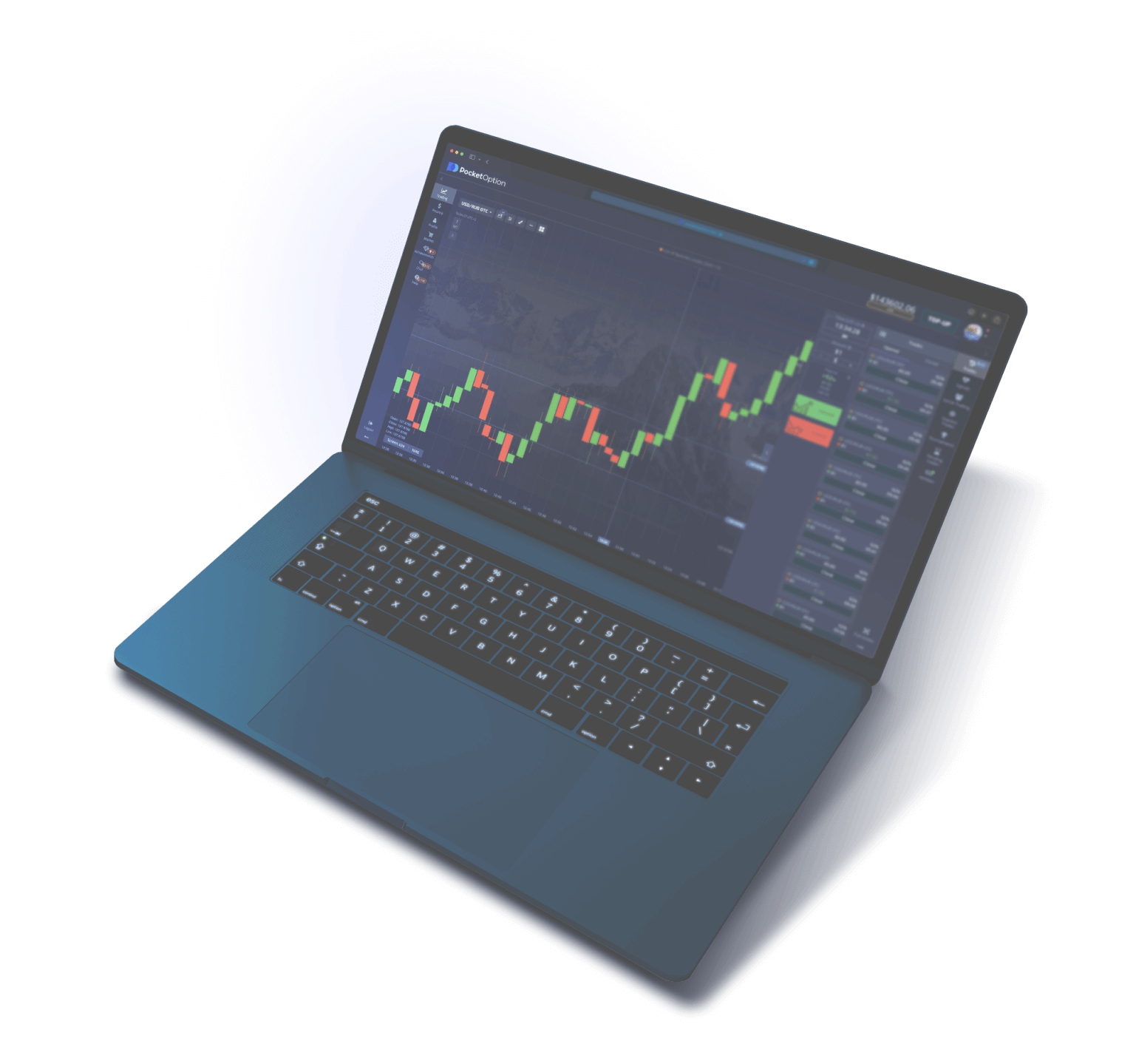
Why Download the Pocket Option Desktop App to Your Computer
Pocket Option offers several ways to access the trading platform: a web terminal in the browser, mobile apps for Android and iOS, and a full-featured desktop application for Windows and macOS computers. Each format is designed for a specific use case, but the desktop app remains the choice of traders who trade systematically and spend more than a few minutes a day on market analysis.
The primary reason to install the application on a computer is workflow performance. The Pocket Option desktop version launches as a standalone application with a direct TCP connection to the trading servers, bypassing the intermediate layers of the browser engine. This delivers a noticeable reduction in latency for order transmission and quote updates. In practice, the difference is 30–80 milliseconds compared to the web terminal, which is critical for scalping strategies with 30-second and 1-minute timeframes.
The second argument is screen real estate and workspace separation. A mobile phone physically cannot display the chart, indicator panel, open orders list, and social trading feed simultaneously. On a computer monitor, all these elements sit side by side without the need to switch between tabs or scroll. Traders with two monitors move additional charts to the second screen, tracking correlations between assets in real time.
The third factor is stability. A browser consumes RAM not only for the trading terminal but also for all other open tabs, extensions, sync processes, and background tasks. The Desktop App runs in isolation: it is allocated a dedicated memory block, does not compete with other browser tasks, and is not vulnerable to accidental closure when clicking the tab's close button. Conflicts with ad blockers, security extensions, and VPN plugins are also eliminated — in a browser, these frequently disrupt WebSocket connections.
Finally, the desktop application provides a set of features that are unavailable or limited in the web version: fully customizable hotkeys for instant trade execution, a multi-chart mode displaying up to six assets simultaneously, advanced data export options, and integration with operating system notifications. For traders who treat trading as a primary or secondary professional activity, the desktop version is the only sensible choice.
Who the Desktop Version Is For
The Desktop App is ideal for several categories of traders. Scalpers working on timeframes from 30 seconds to 5 minutes get maximum order execution speed and the ability to enter a position instantly via hotkeys. Analysts applying complex technical analysis with four or more overlaid indicators appreciate the large screen and the ability to split the workspace into multiple independent charts. Traders who follow a schedule (morning and evening sessions) use the auto-launch on startup feature so the terminal is ready by the time the market opens.
A separate group consists of traders who combine trading with their primary work at a computer. The Desktop App runs in the background and sends system notifications when specified conditions are met (a price level is reached, a trade closes, an indicator signal fires). The user continues their primary activity and switches to the terminal only when a notification arrives — this cannot be implemented as conveniently in the web terminal due to the limitations of browser notifications.
Tip: Even when using the desktop application, it is recommended to install the mobile app as a backup access channel. If the internet connection on your desktop computer drops during an open trade, you will be able to quickly close the position from your phone using mobile internet.
Installing Pocket Option on Windows: Step-by-Step Guide
Installing the Pocket Option desktop application on a Windows computer takes two to five minutes depending on your internet connection speed and computer performance. The application is compatible with Windows 7 (64-bit), Windows 8, Windows 8.1, Windows 10, and Windows 11. Below is a detailed step-by-step guide describing each stage of the process.
Step 1. Downloading the Installation File
Go to the official Pocket Option website using any browser. On the homepage or in the "Platform" section, find the "Download for Windows" button. Click it — the download of the .exe installation file will begin. The file size is approximately 85 MB. The file will be saved to your browser's default downloads folder, typically "Downloads" on the system drive.
If the platform's main website is blocked by your internet provider, use a current Pocket Option mirror. The installation file is identical across all official mirrors — the version and contents do not differ. If the mirror is unavailable, connect to a VPN service with a server in the Netherlands, Germany, Turkey, or Kazakhstan and try downloading again.
Step 2. Verifying the Downloaded File
Before launching the installer, verify the file's authenticity. The size should be between 80 and 100 MB (depending on the version). The file name typically contains "PocketOption" or "PO-Setup". If the file is smaller than 20 MB or has an unusual name — delete it and download it again from the official source. Running an antivirus scan before launching is not required when downloading from the official site, but is recommended when using third-party sources.
Step 3. Running the Installer
Locate the downloaded file in your Downloads folder and double-click it. Windows may display a SmartScreen filter warning saying "Windows protected your PC." Click "More info," then "Run anyway." This is standard SmartScreen behavior for applications downloaded from the internet that have not been verified with a Microsoft digital signature. The application is safe — the warning is not due to a detected threat, but rather the absence of a signature in the SmartScreen database.
If the installation requests administrator privileges, confirm the prompt in the UAC (User Account Control) dialog. On computers with restricted permissions (a work PC in an organization), you may need to enter an administrator password or contact your system administrator.
Step 4. Choosing Installation Settings
The installer will display a setup wizard. On the first screen, select your preferred interface language. Next, accept the terms of the license agreement. On the following step, specify the installation folder. The default path is C:\Program Files\PocketOption — it is recommended to leave it unchanged. If the system drive is full, specify an alternative path on another partition, such as D:\PocketOption. Check the "Create a desktop shortcut" box for quick access to the application.
Step 5. Completing Installation and First Launch
Click "Install" — the file copying process will take between 30 seconds and two minutes. Once installation is complete, check the "Launch Pocket Option" box and click "Finish." The application will start and, on first launch, will download additional data from the server (quotes, interface assets, language packs). This process takes between 20 seconds and one and a half minutes depending on your internet speed.
On the login screen, enter the email and password for your Pocket Option account. If you don't have an account yet, click "Registration" and create one directly in the app by entering your email and choosing a password. After logging in, the trading terminal will open with access to a demo account (virtual balance of $50,000) and a real account. It is recommended to enable two-factor authentication in the security settings right away.
Step 6. Adding to Antivirus Exceptions
Some antivirus programs (Kaspersky, Dr.Web, Avast, AVG) may incorrectly identify the trading application as potentially unwanted software due to its network activity and handling of financial data. If your antivirus blocks the application from launching or blocks its network connections, add the installation folder (C:\Program Files\PocketOption) to the antivirus exclusion list. Also add the PocketOption.exe executable to your firewall rules, allowing outbound TCP connections on ports 443 and 8443.
Warning: Do not run multiple instances of the application simultaneously on the same computer. This may cause session conflicts and authentication errors. If you need to trade on multiple accounts at the same time, use the desktop application for one account and the web terminal in a browser for the other.
Installing Pocket Option on macOS: Step-by-Step Guide
The Pocket Option Desktop App for Mac is distributed as a .dmg disk image. The application is compatible with macOS 10.12 Sierra and all later versions, including macOS 14 Sonoma and macOS 15 Sequoia. On computers with Apple Silicon processors (M1, M2, M3, M4), the app runs natively without Rosetta 2 emulation, ensuring maximum performance and minimal power consumption.
Step 1. Downloading the DMG Image
Open Safari, Chrome, or any other browser on your Mac and go to the official Pocket Option website. Find the "Download for Mac" (or "Download for macOS") button. The download file size is approximately 90–95 MB. The file will be saved to your Downloads folder. If the main site is blocked, use the platform's mirror or a VPN connection.
Step 2. Mounting the Image and Installing
Double-click the downloaded .dmg file — macOS will mount a virtual disk and open a window showing its contents. Inside you will see the Pocket Option application icon and a shortcut to the Applications folder. Drag the application icon onto the Applications folder shortcut. The file copy process takes 15–30 seconds. Once copying is complete, eject the virtual disk: right-click the disk icon on the desktop and select "Eject."
Step 3. First Launch and Gatekeeper Permission
Open the Applications folder in Finder and double-click the Pocket Option icon. On the first launch, macOS will display a Gatekeeper warning: "The application cannot be opened because it was not downloaded from the App Store" or "The app cannot be opened because the developer cannot be verified." This is standard macOS behavior for applications downloaded from the internet.
To bypass this restriction, do one of the following. Option one: open System Settings, go to Privacy & Security, scroll down to the Security section, and click "Open Anyway" next to the message about the blocked application. Option two: right-click the application icon in the Applications folder, select "Open" from the context menu, then click "Open" in the dialog that appears. The permission is permanent — the warning will not appear on subsequent launches.
Step 4. Login and Initial Setup
After the first launch, the application will display a login screen. Enter the email and password for your Pocket Option account, or register directly within the application. The app will download the latest quotes and interface assets — this process takes up to one and a half minutes on the first launch. The trading terminal will then open, ready to use.
On Mac computers with a Touch Bar (MacBook Pro 2016–2019), the application displays quick-access buttons on the Touch Bar: Call, Put, trade amount adjustment, and timeframe switching. On MacBook models with Touch ID, you can log in to the application using your fingerprint after the initial email and password authentication. To enable biometric login, go to the application settings — Security — Sign in with Touch ID.
Step 5. Granting Network Access
On the first launch, macOS may request permission to allow incoming network connections for the Pocket Option application. Click "Allow" — this is required to receive real-time quotes and transmit trading orders to the server. If you use a firewall such as Little Snitch or Lulu, add Pocket Option to the list of allowed applications with permission for outbound connections on ports 443 and 8443.
Optimization for Apple Silicon
On Mac computers with Apple Silicon processors (MacBook Air M1/M2/M3, MacBook Pro M1-M4, Mac Mini M1-M4, iMac M1-M4, Mac Studio, Mac Pro M2 Ultra), the Pocket Option desktop application runs as a Universal Binary containing code for both ARM architecture and Intel x86_64. The system automatically selects the optimal code branch. On Apple Silicon, the application launches on average 40% faster and consumes 25-35% less RAM compared to running through Rosetta 2.
To check the operating mode, open Activity Monitor, find the PocketOption process in the list, and check the "Kind" column — it should display "Apple" (native mode). If it shows "Intel", the application is running through Rosetta 2 emulation — update the program to the latest version that includes native ARM support.
Tip: For maximum performance on Mac, close unused applications before launching Pocket Option. Despite macOS's efficient memory management, freeing up resources will ensure smooth chart rendering when tracking multiple assets simultaneously, especially on models with 8 GB of RAM.
System Requirements of the Pocket Option Desktop Application
The Pocket Option Desktop App is designed to run on a wide range of computers — from budget laptops to multi-monitor workstations. That said, for comfortable trading with multiple indicators and multi-chart mode, your computer must meet certain specifications. Below is a detailed table of minimum and recommended system requirements for both operating systems.
| Parameter | Windows (minimum) | Windows (recommended) | macOS (minimum) | macOS (recommended) |
|---|---|---|---|---|
| Operating System | Windows 7 SP1 (64-bit) | Windows 10 22H2 / Windows 11 | macOS 10.12 Sierra | macOS 14 Sonoma and above |
| Processor | Intel Core i3-3220 / AMD FX-6300 | Intel Core i5-10400 / AMD Ryzen 5 3600 | Intel Core i3 / Apple M1 | Apple M2 / Intel Core i5 (8th generation) |
| RAM | 4 GB | 8 GB | 4 GB | 8 GB |
| Free Disk Space | 200 MB | 500 MB (SSD) | 250 MB | 500 MB (SSD) |
| Graphics Card | Integrated Intel HD 4000 | Intel UHD 630 / discrete GPU | Integrated Intel HD / Apple GPU | Apple GPU (M-series) |
| Screen Resolution | 1366x768 | 1920x1080 (Full HD) and above | 1440x900 | 2560x1600 (Retina) and above |
| Internet Speed | 1 Mbps | 10 Mbps and above | 1 Mbps | 10 Mbps and above |
| Installation Size | ~85 MB (+ up to 300 MB cache) | ~95 MB (+ up to 300 MB cache) | ||
The minimum requirements support launching the application and basic trading with a single chart and two to three indicators. Under these conditions, delays may occur when switching timeframes and loading historical data. The recommended specifications ensure comfortable operation with multiple simultaneous charts, a full set of indicators, and an active social trading feed.
The type of storage drive deserves special attention. Installing on an SSD (solid-state drive) rather than an HDD (hard disk drive) significantly speeds up application startup and historical data loading. The difference is most noticeable on the first launch after installation and when switching between large timeframes with deep price history. On computers with an HDD, it is recommended to increase the page file size to 8 GB to prevent freezes.
Internet connection speed affects not so much the performance of the graphical interface as the speed of order execution and the relevance of quotes. With a connection below 1 Mbps, price update delays and tick skipping on short timeframes are possible. For scalping, not only speed but also connection stability is critical — a wired Ethernet connection is preferable to Wi-Fi due to lower ping variability.
Compatibility with Virtual Machines
Desktop App Pocket Option works inside virtual machines (VMware Workstation, VirtualBox, Parallels Desktop, Hyper-V), however performance will be lower compared to running on bare metal. For macOS users with Apple Silicon who require the Windows version of the application, the optimal solution is Parallels Desktop with Windows 11 ARM — virtualization runs natively on the ARM architecture without double emulation. An alternative is to use the macOS version of the application, which is functionally identical.
Desktop App vs Web Version: A Detailed Comparison
Traders often wonder: is it worth installing the program on a computer if the web terminal is available directly in the browser without downloading? The answer depends on trading intensity and the strategies used. Below is a detailed comparison table across ten key criteria to help you make an informed decision.
| Criterion | Desktop App | Web Version (browser) |
|---|---|---|
| Order execution speed | Direct TCP connection, latency 15–50 ms | Via browser WebSocket, latency 50–130 ms |
| RAM consumption | 250–400 MB (stable) | 500–1200 MB (grows over time) |
| Multi-chart mode | Up to 6 charts, multi-monitor support | Up to 4 charts in a single browser window |
| Hotkeys | Fully customizable, no conflicts with the OS | Basic set, conflicts with browser hotkeys |
| Notifications | OS system notifications, work even when the window is minimized | Browser notifications, can be blocked by extensions |
| Stability over 4+ hours | Stable, memory does not grow | Memory leaks possible, refreshing the tab is recommended |
| Auto-start on PC boot | Configurable within the application | Not possible |
| Chart template saving | Local + cloud, instant loading | Cloud only, depends on internet speed |
| VPN / proxy support | Uses system proxy settings | Uses browser settings, possible conflicts with extensions |
| Updates | Automatic on launch, patch files (5–20 MB) | Always the latest version (loaded from the server) |
Based on the comparison, the desktop application outperforms the web version across all parameters related to performance, stability, and depth of customization. The only advantage of the web terminal is that no installation is required and it provides instant access from any computer. This makes the web version convenient for occasional use on other people's devices, but not for regular trading.
For traders executing more than five trades per day and using technical analysis with three or more indicators, the desktop application is the clear choice. Reduced execution latency, stable memory usage, and fully customizable hotkeys together provide a tangible edge that translates into more precise strategy execution and fewer missed entries.
For traders who make one or two trades per day on medium- and long-term timeframes (5 minutes and above), the difference between the desktop and web versions is less critical. In this case, the choice comes down to personal preference and familiarity with a particular workflow. That said, even for infrequent trading, the stability of the desktop application and the ability to auto-launch on startup make it the more convenient option.
Configuring the Pocket Option Desktop Application After Installation
After installation and initial login, the Pocket Option desktop application is ready to trade with default settings. However, for maximum comfort and efficiency, it is recommended to spend 10-15 minutes personalizing the interface, notifications, and trading parameters. Below are the key settings to configure before you begin active trading.
Interface Settings
Go to "Settings" (the gear icon in the upper-right corner of the terminal) and open the "Interface" tab. Choose a color theme: the dark theme reduces eye strain during extended screen time, while the light theme provides better detail visibility in bright environments. Set the font size — 14pt is optimal for Full HD (1920x1080) monitors, and 16-18pt is recommended for 4K displays.
Configure panel layout: the asset sidebar can be positioned on the left or right, and the open orders panel can be placed at the bottom or as a floating window. For dual-monitor setups, drag the asset panel or the social trading feed to your second screen. The application remembers window positions and restores them on the next launch.
Chart Settings
Select your default chart type: Japanese candlesticks (recommended for most strategies), bars, line, or Heikin Ashi. Set the colors for bullish and bearish candles — the standard scheme (green/red) works for most users, though alternative combinations are available. Adjust the thickness of grid lines and levels — on high-resolution screens, thin lines (1 pixel) may be difficult to distinguish.
Create and save indicator templates for your strategies. A template captures a set of indicators, their parameters, line colors, and chart placement. It is recommended to create a separate template for each trading strategy — switching between strategies will then be as simple as selecting a template from a dropdown list, rather than manually reconfiguring each indicator from scratch.
Trading Parameter Settings
In the "Trading" tab, set the default trade amount that the application will pre-fill when opening new positions. For risk management purposes, a single trade amount should not exceed 2-5% of your balance. Configure the default expiration — the trade duration (30 seconds, 1 minute, 5 minutes, etc.). Select your preferred assets and add them to your favorites list for quick access — this eliminates the need to search for a specific currency pair or cryptocurrency in the general catalog each time.
Notification Settings
Go to the "Notifications" section and configure alert types: trade result (profit/loss), price level reached, indicator signals, support messages, and platform updates. On Windows, notifications are displayed via Windows Action Center; on macOS, via Notification Center. For important events (completion of large trades, exceeding an acceptable loss threshold), it is recommended to enable sound notifications, which will draw your attention even when working in another application.
Security Settings
Enable two-factor authentication (2FA) via Google Authenticator or Authy. Configure automatic application lock on inactivity — the recommended interval is 5-15 minutes. This will prevent unauthorized access to your trading account if you step away from your computer. If you have Windows Hello or Touch ID on Mac, enable biometric authentication for quick app unlock without entering a password.
Auto-launch and Updates
If you trade daily, enable auto-launch on system login — the application will load with the operating system, so the terminal will be ready with current quotes by the time the trading session opens. Also keep the automatic update feature enabled — updates contain security fixes and performance optimizations, and skipping them is not recommended.
Pocket Option Desktop Platform Keyboard Shortcuts
One of the key advantages of the desktop application over the web terminal is fully customizable keyboard shortcuts. They allow you to execute trades and manage the interface without using a mouse, which significantly speeds up your workflow. For scalpers placing dozens of trades per session, keyboard shortcuts reduce the time from decision to order execution from 2-3 seconds (mouse click) to 0.3-0.5 seconds (key press).
The table below lists the default keyboard shortcuts. All combinations can be reassigned in Settings — Keyboard Shortcuts. On macOS, the Ctrl key is replaced by Command.
| Action | Windows | macOS |
|---|---|---|
| Open Call trade (Up) | Ctrl + Up | Cmd + Up |
| Open Put trade (Down) | Ctrl + Down | Cmd + Down |
| Increase trade amount | Ctrl + Plus | Cmd + Plus |
| Decrease trade amount | Ctrl + Minus | Cmd + Minus |
| Switch timeframe up | Ctrl + Right | Cmd + Right |
| Switch timeframe down | Ctrl + Left | Cmd + Left |
| Next asset | Alt + Right | Option + Right |
| Previous asset | Alt + Left | Option + Left |
| Add/remove from favorites | Ctrl + D | Cmd + D |
| Open indicators list | Ctrl + I | Cmd + I |
| Full-screen mode | F11 | Cmd + Ctrl + F |
| Save chart template | Ctrl + S | Cmd + S |
| Take chart screenshot | Ctrl + Shift + S | Cmd + Shift + S |
| Open settings | Ctrl + Comma | Cmd + Comma |
To create a custom shortcut, go to Settings — Keyboard Shortcuts, find the desired action in the list, and click on the current combination. The system will enter listening mode — press the new key combination you want to assign. If the selected combination is already in use by another action, the application will display a warning and offer the option to replace or cancel the reassignment.
Tips for configuring keyboard shortcuts for active trading: assign Call and Put trade openings to easily accessible keys that can be pressed with one hand (for example, keys "1" and "2" or "Q" and "W"). Place trade amount and timeframe switching on adjacent keys for quick access without moving your hand. Avoid combinations with three or more keys for critical actions — when making a trading decision, every tenth of a second counts.
Tip: Practice using keyboard shortcuts on a demo account before switching to a real one. Spend 20-30 minutes getting used to the key layout — muscle memory develops quickly, and after a few trading sessions you'll be opening trades without consciously searching for the right key.
Common Issues When Installing and Using the Desktop Application
Installing and using the Pocket Option desktop application on a computer goes smoothly in the vast majority of cases. However, the specifics of operating systems, antivirus programs, and network settings can create situations that require manual intervention. Below are the most common issues with step-by-step solutions for each.
| Issue | OS | Cause | Solution |
|---|---|---|---|
| SmartScreen blocks the installer | Windows | The installer does not have a digital signature in the SmartScreen database | Click "Read more" — "Run anyway". Only download the file from the official website |
| Gatekeeper blocks the first launch | macOS | The application was not downloaded from the App Store | System Settings — Privacy & Security — "Open Anyway". Or right-click the application — "Open" |
| Antivirus deletes the installation file | Windows | False positive (trading software flagged as suspicious) | Add the downloads folder and the path C:\Program Files\PocketOption to your antivirus exclusions, then re-download the file |
| Application won't launch, MSVCP140.dll error | Windows | Visual C++ Redistributable is missing | Download and install Microsoft Visual C++ Redistributable 2015-2022 (x64) from the Microsoft website |
| Charts won't load, blank screen | Windows / macOS | Firewall is blocking outgoing connections from the application | Add PocketOption.exe to your firewall rules with permission for TCP connections on ports 443 and 8443 |
| Quotes freeze, data not updating | Windows / macOS | Unstable internet connection or Wi-Fi congestion | Switch to a wired Ethernet connection. Restart your router. Close applications consuming bandwidth |
| Blurry interface on a 4K monitor | Windows | Incorrect DPI scaling | Right-click the shortcut — Properties — Compatibility — "Change high DPI settings" — enable "Override high DPI scaling behavior" — select "Application" |
| High CPU usage (above 30%) | Windows / macOS | Simultaneously displaying more than 4 charts with active indicators | Reduce the number of charts open at once. Disable candle animation in settings. Close the social trading feed |
| "Session expired" authorization error | Windows / macOS | System clock on the computer is out of sync | Enable automatic time synchronization: Windows — Settings — Time — Set automatically. macOS — System Settings — Date & Time — Set automatically |
| Application crashes when running through Rosetta 2 | macOS (Apple Silicon) | Outdated application version without native ARM support | Update the application to the latest version. If no update is available — force it to run through Rosetta: Finder — Get Info — "Open using Rosetta" |
Connection Troubleshooting
If the application launches but shows a "No server connection" or "Connection timeout" error, first check your internet connection and firewall settings. Some corporate or university networks restrict access to trading platforms — try switching to a mobile hotspot to verify whether the issue is network-related.
If the problem persists, try changing your DNS settings. In some cases, using a public DNS server such as Cloudflare (1.1.1.1) or Google (8.8.8.8) resolves connectivity issues without any additional configuration required. On Windows, update DNS settings in Network Adapter Properties; on macOS, go to System Settings → Network → DNS.
Reinstalling the Application
If none of the solutions described above helped, perform a full reinstallation. On Windows: open "Programs and Features" (or "Installed Apps" in Windows 11), find Pocket Option, and click "Uninstall". Then delete the residual files from C:\Users\[Username]\AppData\Local\PocketOption and C:\Users\[Username]\AppData\Roaming\PocketOption. Download the latest installer and perform a fresh installation.
On macOS: move the application from the Applications folder to the Trash. Then delete the cache files: open Finder, press Cmd+Shift+G, enter ~/Library/Application Support/PocketOption, and delete that folder. Also delete ~/Library/Caches/PocketOption. Download a fresh DMG file and reinstall the application. After reinstallation, you will need to log in again — your account settings will be restored from the cloud.
FAQ About the Pocket Option Desktop App
Answers to the most common questions from traders about downloading, installing, and using the Pocket Option desktop app on Windows and macOS computers.
Yes, the app for Windows and macOS is completely free. The platform charges nothing for downloading, installing, or using the software. No subscriptions, trial periods, or paid features — the full trading toolkit is available to every registered user without restrictions. Payment is only required when funding a real trading account; the minimum deposit is $5.
Yes, the desktop app is compatible with Windows 7 Service Pack 1 (64-bit only). Proper operation requires the KB2533623 update package and Microsoft Visual C++ Redistributable 2015-2022. Keep in mind that Microsoft ended support for Windows 7 in January 2020 — using an outdated operating system carries security risks unrelated to the Pocket Option app itself. Upgrading to Windows 10 or 11 is recommended.
Yes, the Pocket Option app ships as a Universal Binary and runs natively on all Macs with Apple Silicon processors without Rosetta 2 emulation. On M-series chips, the app launches faster, uses less RAM, and consumes less battery compared to the Intel version. All MacBook Air, MacBook Pro, Mac Mini, iMac, Mac Studio, and Mac Pro models on Apple Silicon are fully supported.
Yes, all account data syncs in real time across the desktop app, mobile clients (Android, iOS), and the web terminal. Balance, open trades, transaction history, account settings, and chart templates are stored on Pocket Option servers and accessible upon login from any device. A trade opened on your computer appears instantly on your phone, and vice versa. One account supports simultaneous login on multiple devices.
Under normal usage (one chart with two or three indicators), the app consumes 250–350 MB of RAM. With active use of multi-chart mode (4–6 charts) and the social trading feed, consumption rises to 400–600 MB. Unlike the web version, the desktop app's memory usage stays stable over time — memory leaks are eliminated thanks to native resource management outside the browser environment.
No native desktop application is available for Linux. There are three alternatives: first — use the web terminal in a browser (Chrome, Firefox), which has functionality identical to the desktop version; second — run the Windows version of the application via Wine or Proton (stability is not guaranteed); third — install Windows in a virtual machine (VirtualBox, GNOME Boxes) and run the application inside it. For most Linux users, the web terminal is the optimal solution.
No transfer is needed — simply download and install the application on the new computer from the official website, then sign in to your account. All data (balance, trade history, account settings) is tied to your account and stored on the server, not on your local computer. Chart templates saved to the cloud will load automatically after signing in. Local interface settings (panel layout, color theme) will need to be reconfigured manually or exported from the old application via the Settings — Export Configuration menu.
The application uses the operating system's encrypted credential storage: Windows Credential Manager on Windows and Keychain on macOS. The password is not stored in plain text on disk and cannot be retrieved without access to the operating system account. For additional protection, enable two-factor authentication (2FA) and automatic application lock on inactivity. When using a shared or work computer, it is recommended not to save the password and to sign in manually each time the application is launched.
Download Pocket Option for desktop and trade in maximum comfort
Desktop App free for Windows and Mac. Demo Account $50,000, advanced charts, hotkeys, multi-monitor mode.