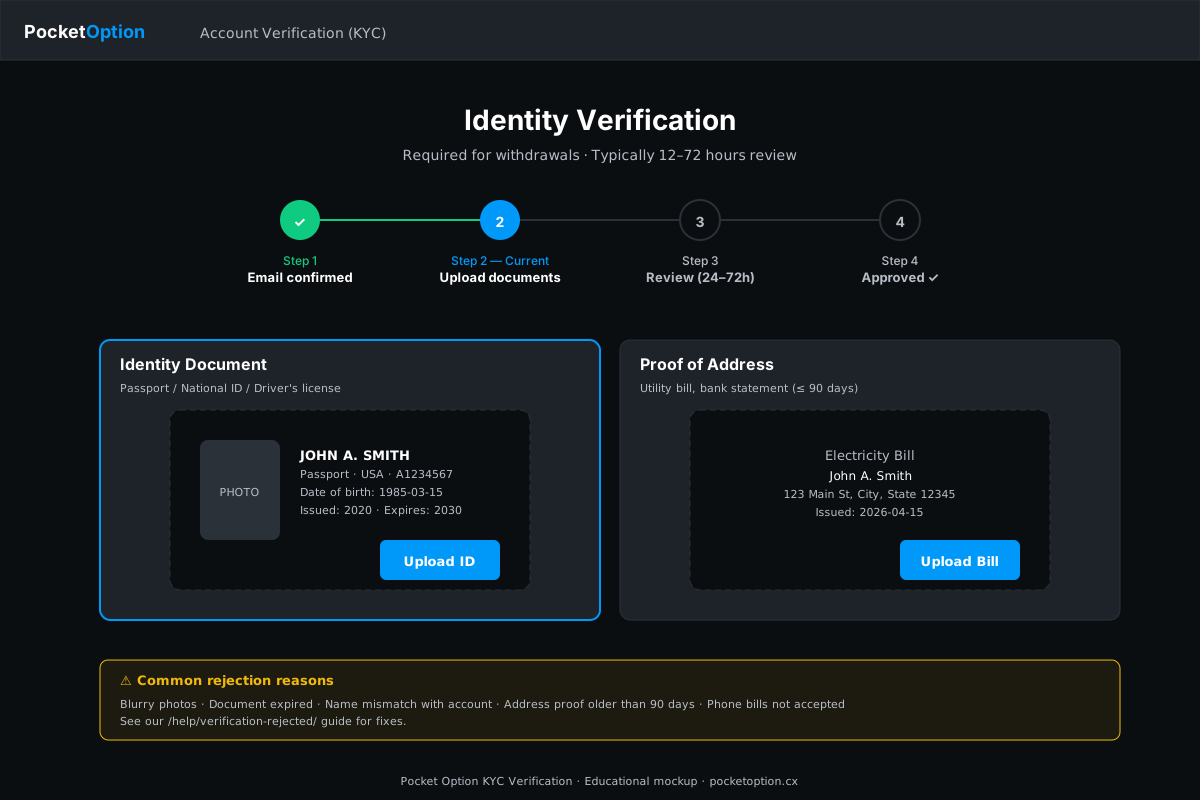
Step-by-Step Verification Guide
The verification procedure on Pocket Option is carried out through the trader's personal dashboard. The entire process consists of several stages: filling in personal details, uploading documents, and waiting for the review results. Below is a detailed guide for each step, following which you can complete verification on the first attempt without rejections or re-uploads.
Step 1: Log Into Your Account
Sign in to the Pocket Option platform using your credentials. After logging into your account, navigate to the profile settings section — click on the avatar icon in the upper right corner of the screen and select "Profile" or "Settings." On the profile page, you will see a "Verification" or "Identity Confirmation" section with a current status indicator. If verification has not yet been completed, the status will be displayed as "Not Verified" with an option to begin the process.
Step 2: Fill In Your Personal Details
Before uploading documents, you need to fill in or review the personal details in your profile. Make sure the following information is provided: full name (as it appears on your ID, including middle name if applicable), date of birth, country of residence, address (city, street, building, postal code), and mobile phone number. All data must exactly match the information in the documents you upload. A common mistake is entering the name in one alphabet while the uploaded document uses another. Use the same transliteration as shown in the document.
If you provided a simplified name during registration (for example, only your first and last name), add the complete details at this stage. The platform checks every field for consistency, and even a minor discrepancy (a missing middle name, a different spelling of the surname) can result in rejection. Save the changes to your profile before proceeding to the next step.
Step 3: Upload Your Proof of Identity
In the verification section, select the document type (passport, international passport, or driver's license) and upload the file. For a national passport, you will need a photograph of the main data spread — the page containing the photograph, full name, date of birth, document series and number, as well as the date and place of issue. Some brokers additionally request a photo of the registration page, but on Pocket Option this is not required provided you submit a separate proof of address.
File quality requirements: a resolution of at least 300 DPI when scanning or a minimum of 5 megapixels when photographing with a smartphone camera. Accepted formats: JPEG (JPG), PNG, PDF. Maximum file size is 8 megabytes. The photograph must be in color, clear, without glare, shadows, or extraneous objects. All four corners of the document must be fully visible, and no text characters should be cropped or obscured. Do not use flash when photographing — it creates glare that makes text unreadable.
Step 4: Upload Your Proof of Address
The next stage is uploading a document confirming your residential address. Select the document type from the provided list and upload the file. The most convenient option is a bank statement for the most recent month. Most banks allow you to download such a statement through their mobile app in PDF format. Your name, address, and the date the document was generated must be visible on the statement.
If you do not have a bank statement with your address, a utility payment receipt (electricity, gas, water) showing the payer's full name and the property address will work. Tax notices (which can be downloaded through your tax authority's online portal), a certificate of residence registration, and documents from government agencies showing your address are also accepted. The key requirement is that the document must have been issued no more than three months before the submission date.
Step 5: Upload Proof of Payment Method
The final document confirms ownership of the payment method you use for transactions on the platform. For a bank card, take a photograph of the front side: cardholder's name, first six and last four digits of the number, and expiration date. Cover the middle digits of the number and the CVV code on the back with an opaque item (sticker, tape) or blur them in an image editor before uploading. The platform strongly advises against providing the full card number and CVV code for your financial security.
For e-wallets, take a screenshot of the payment system's personal dashboard showing your name and identifier (phone number, wallet number, or email). Make sure the screenshot does not display confidential information about your balance or transactions — this data can be blurred before uploading.
Step 6: Submit Documents for Review
After uploading all three documents, click the "Submit for Review" or "Confirm" button. The system will assign your application a status of "Under Review" — this means the documents have been queued for review by compliance department specialists. You can track the verification status in real time from your personal dashboard. If necessary, customer support will contact you through the internal chat or by email to clarify information or request additional documents.
After submitting documents, do not make changes to your profile data until the review is complete — this may lead to the application being voided and the need to restart the process from scratch. If you discover an error after submission, contact customer support via live chat and ask them to return the application for revision. Operators typically respond within a few minutes and can help correct the data without a complete restart of the procedure.